Language Accessibility

Cómo traducir idiomas | How to Translate Language

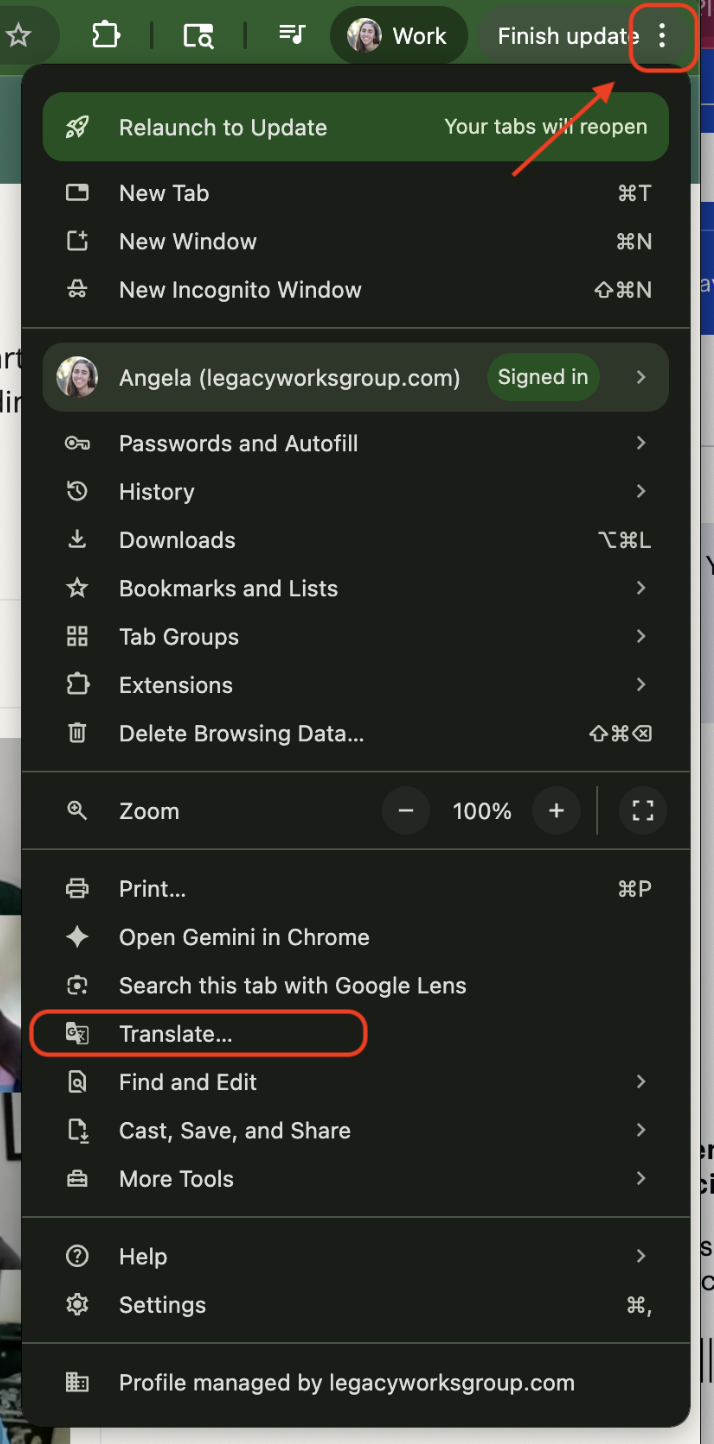
  1. En la esquina superior derecha de la página web, haz clic en los tres puntos junto a Finalizar actualización. Haz clic en Traducir.

Screenshot of Google Chrome settings window open with the 'Translate' option three-quarters of the way to the bottom outlined in a red square

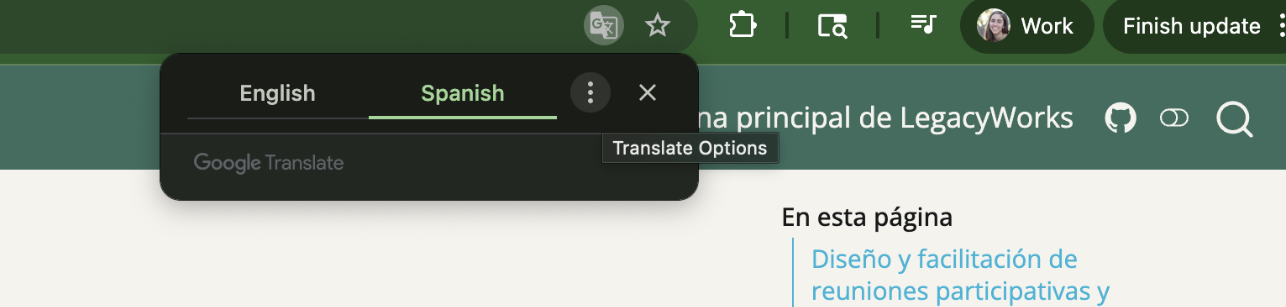
  1. Seleccione un idioma. Haga clic en los tres puntos si necesita seleccionar un idioma nuevo.

Screenshot of Google Chrome language choice contextual window set to 'Spanish'

  1. In the top right corner of the webpage, click on the three dots next to “Finish update”. Click on “Translate”.

Screenshot of Google Chrome settings window open with the 'Translate' option three-quarters of the way to the bottom outlined in a red square

  1. Select a language. Click on the three dots if you need to select a new language.

Screenshot of Google Chrome language choice contextual window set to 'Spanish'

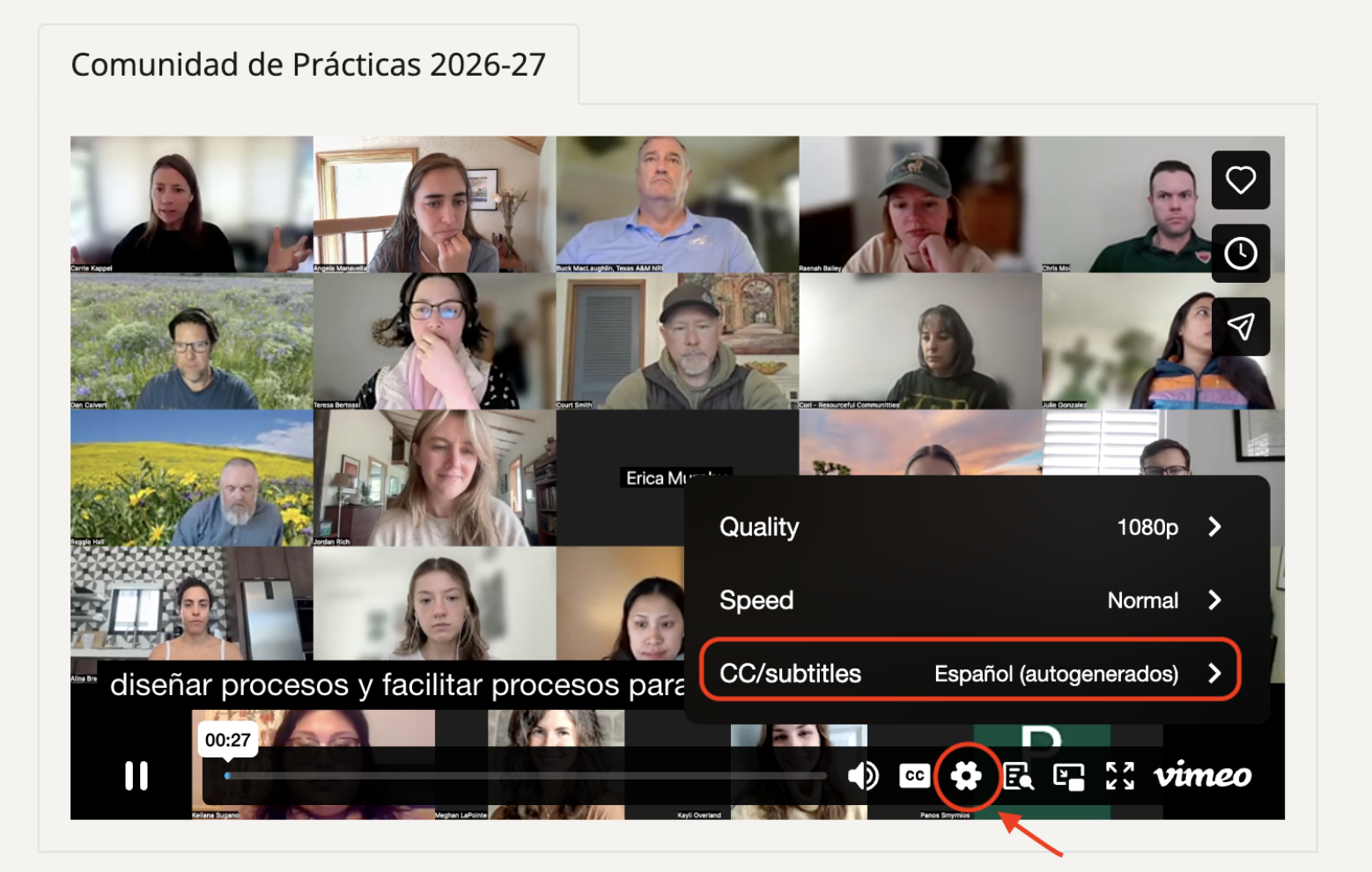
  1. Haz clic en el icono de Configuración. Haz clic en CC/Subtítulos Selecciona tu idioma.

Screenshot of Vimeo playback window with the Settings gear circled in red and the 'CC/subtitles' option set to Spanish in a red rectangle

  1. Asegúrate de activar los subtítulos.

Screenshot of Vimeo playback window where the 'CC' button is activated

  1. Click on the Settings icon. Click on “CC/Subtitles” Select your language.

Screenshot of Vimeo playback window with the Settings gear circled in red and the 'CC/subtitles' option set to Spanish in a red rectangle

  1. Ensure captions/subtitles are turned on.
Screenshot of Vimeo playback window where the 'CC' button is activated